Getting started
Create an account, add a payment method and deploy your first database or model.
This guide takes you from a new account to a running database or model on the On-Demand plan.
Create an account#
- Go to nistro.ai/signup.
- Enter your name, email, company and a password of at least 8 characters, then select Sign up. Signing up accepts the Terms of Service and Privacy Policy.
- Open the verification email and follow its link to activate your account.
- Sign in with your email and password.
You can also sign up and sign in with Google or GitHub.
Add a payment method#
You need a payment method on file before you can deploy. Until you add one, the console shows a banner, and a deploy fails with "A payment method is required before deploying. Add one under Billing."
- In the console, open Billing.
- On the Payment Method card, select Configure. This opens the billing provider's page, where you add your payment details.
When the card shows Configured, you're ready to deploy.
Deploy a database#
- Open Postgres Deployments and select Create.
- Keep the On-Demand plan. Set vCPU and storage; memory follows vCPU at 4 GiB per vCPU.
- Optionally pick a workload preset, such as OLTP, and change the database name and username (both default to
app). Leave the password blank to have one generated. - Keep Location on Any to let Nistro AI pick the lowest-priced location, or choose US, EU or Asia. Then select Load pricing.
- Review the offer and select Deploy.
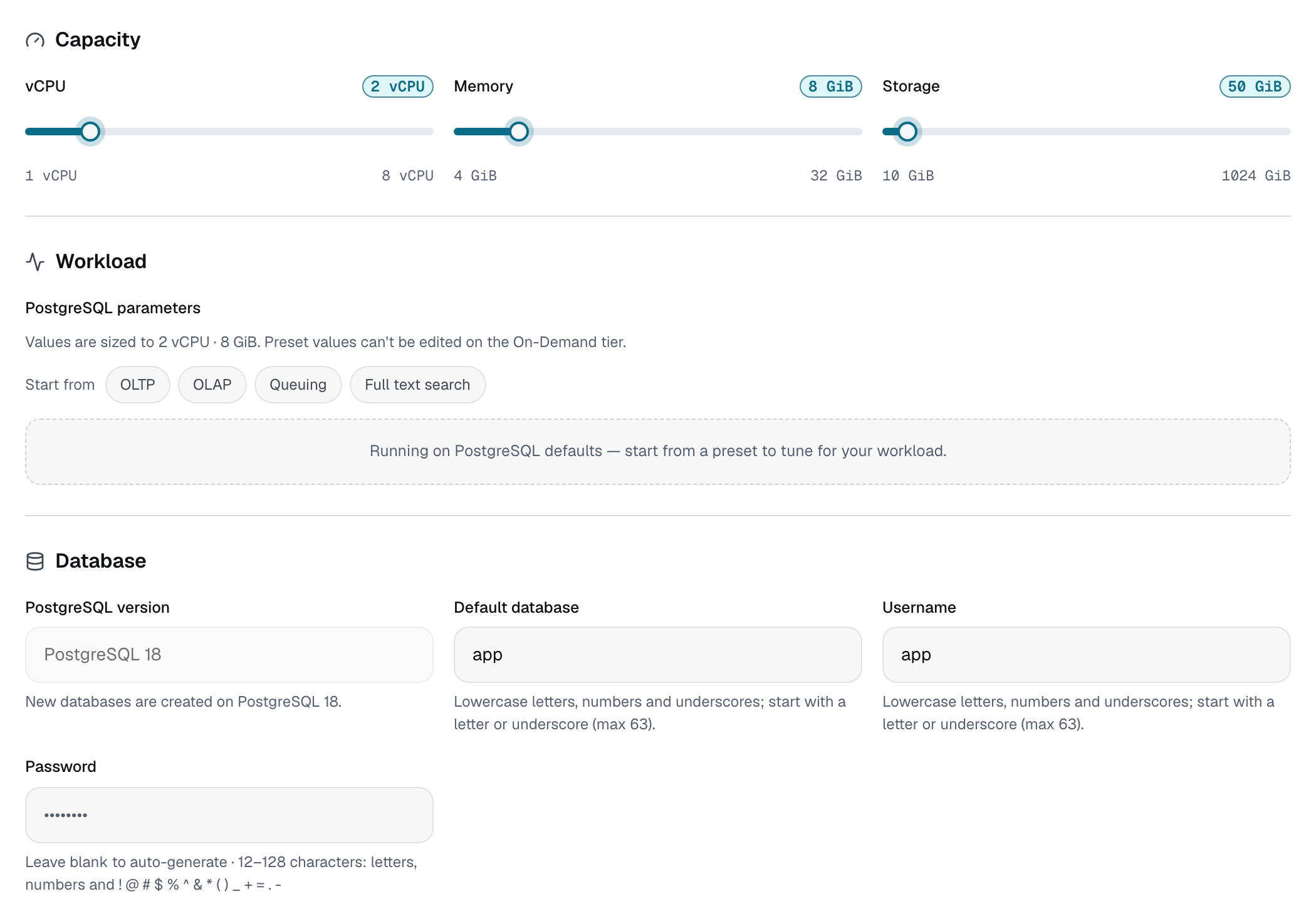
The deployment's page opens. When its status is Running, the Quick test card has a ready-made psql command:
psql 'postgresql://<username>:<password>@<host>:5432/<database>'See Nistro AI Postgres for connection details and everything else you can configure.
Deploy a model#
- Open Inference Deployments and select Create.
- Keep the On-Demand plan. Enter a Hugging Face model id, such as
google/gemma-4-26B-A4B, or paste its huggingface.co URL. The console checks the model as you type. - Keep Location on Any, or choose US, EU or Asia, and select Recommend hardware.
- Review the recommended hardware, select View pricing, then select Deploy.
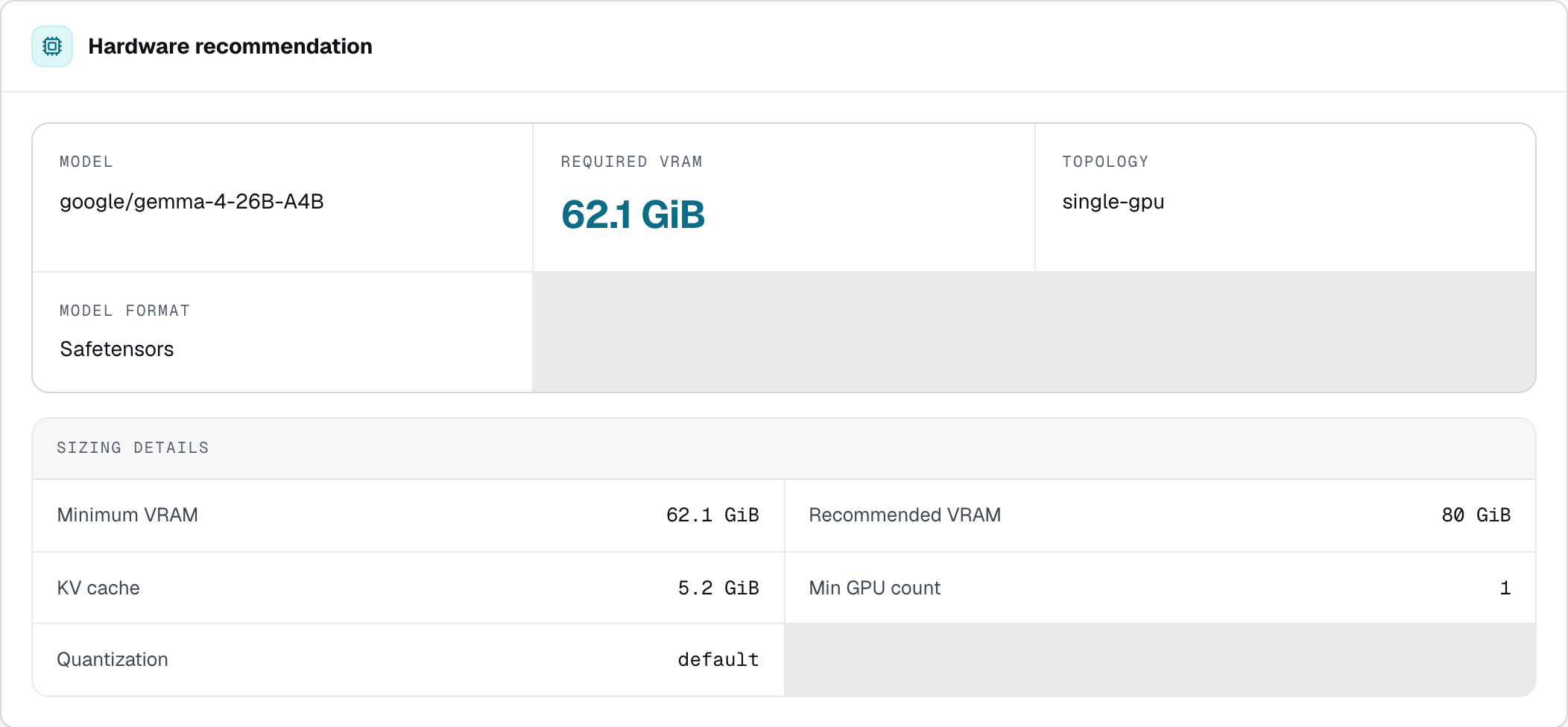
When the deployment is ready, its Overview shows the OpenAI-compatible endpoint, and the Call the API tab shows the API key and example requests. Save the key as NISTRO_TOKEN, then send a request:
curl <endpoint>/openai/v1/chat/completions \
  -H "Authorization: Bearer $NISTRO_TOKEN" \
  -H "Content-Type: application/json" \
  -d '{"model":"<model>","messages":[{"role":"user","content":"Hello"}]}'
Replace <endpoint> with the deployment's endpoint and <model> with the model name shown in the console's examples. See Nistro AI Inference for the OpenAI SDK and streaming.
Next steps#
- Invite your team and set their roles: Teams and roles.
- Track spend on the Usage page: Usage and billing.
- Move to dedicated machines with the Scale plan: Postgres plans and Inference plans.